


How to Reset Chevy Infotainment System
Your Chevy’s touchscreen suddenly freezes mid-drive, refusing to respond no matter how many times you tap it. Knowing how to reset your Chevy infotainment system can save you from unnecessary trips and get you back on the road with full functionality in minutes. If you prefer professional help, our service center is here to assist.
Understanding Your Chevy Infotainment System
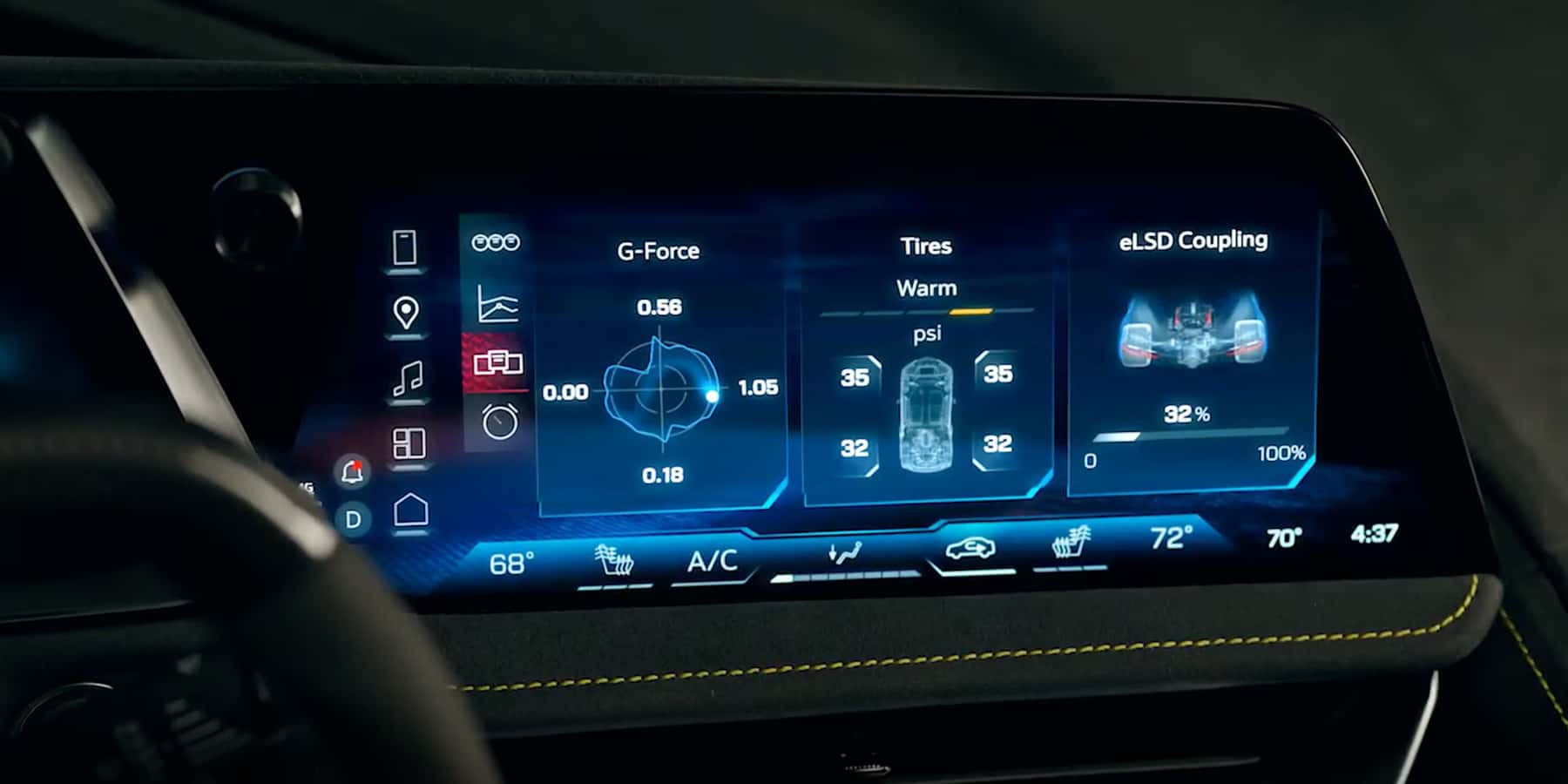
Your Chevy’s infotainment system acts as the digital command center for your entire driving experience. This touchscreen interface handles everything from audio controls and navigation to vehicle settings and smartphone connectivity. The system works with both Apple CarPlay and Android Auto, so you can mirror your phone’s apps directly onto the screen.
Today’s Chevy vehicles pack increasingly sophisticated infotainment platforms. The 2026 Chevy infotainment system delivers enhanced processing power and smoother integration compared to earlier versions. The 2026 Chevy Silverado infotainment system provides a larger display with improved graphics and faster response times. Even with these advances, occasional software hiccups can affect performance as the system handles streaming audio, navigation data, and Bluetooth connections all at once.
Signs Your Chevy Infotainment System Needs a Reset
Recognizing when your Chevy infotainment system not working requires a reset helps you tackle problems quickly. The touchscreen might become sluggish, taking several seconds to respond to your touch. Apps may fail to launch properly or close unexpectedly. A completely frozen screen represents the most obvious sign something’s wrong.
Some drivers with a 2025 Chevy Trax screen not working report the display going completely black or showing only the manufacturer’s logo without progressing further. Audio cutting in and out randomly or Bluetooth connections dropping repeatedly also signal that your infotainment system needs attention. Navigation glitches happen too. GPS location loss and phone integration issues where Apple CarPlay or Android Auto won’t connect despite proper cables suggest deeper software conflicts.
How to Reset Your Chevy Infotainment System: Step-by-Step Methods
Learning how to reset your Chevy infotainment system involves understanding three different approaches. Each method addresses varying severity levels of problems. Start with the gentlest option to protect your saved settings, then move up to more comprehensive resets if needed.
| Reset Type | When to Use | Time Required | Data Impact | Button/Method |
| Soft Reset | Minor glitches, frozen screen | 40 seconds | Preserves settings and paired devices | MyLink: Home + Fast Forward (10 sec); Google: Vehicle in PARK, then hold steering wheel End Call button (20 sec); Other: Power button (10-15 sec) |
| Hard Reset | Soft reset fails, persistent freeze | 15-20 minutes | May erase some settings | Disconnect negative battery cable for 15 min OR remove infotainment fuse briefly |
| Factory Reset | Last resort, major system issues | 5-10 minutes | Wipes all customizations, paired devices, data | Settings > Vehicle > Reset or System > Reset Options > Factory Data Reset; PIN often 000 or 00 |
Soft Reset for Minor Glitches
A soft reset works as your first line of defense against minor infotainment issues. This quick fix clears temporary software problems without erasing your personalized settings. For MyLink systems, press the Home and Fast Forward buttons at the same time for 10 seconds. For Google built-in systems, put your vehicle in PARK first, then hold the steering wheel End Call button for about 20 seconds until the screen turns off and the welcome screen reappears.Other models typically need you to hold the power button for 10-15 seconds until the screen goes dark.
The display will restart automatically, showing the Chevrolet logo as it reboots. This Chevrolet MyLink reset takes less than a minute and keeps your preset radio stations, saved navigation destinations, and paired devices intact. Check your owner’s manual for model-specific instructions since buttons can vary.
Hard Reset for Frozen Screens
When a soft reset doesn’t work, a hard reset provides more thorough intervention. Park your vehicle safely with the ignition off. Pop the hood and locate the battery on the driver’s side of the engine compartment. Use a wrench to disconnect the negative battery terminal (marked with a minus sign and black cable). Wait 15 minutes before reconnecting the terminal. This allows the system’s capacitors to fully discharge.
You can also locate and remove the infotainment fuse briefly from the fuse box instead. Once reconnected or the fuse is replaced, start your vehicle and let the infotainment system initialize completely. This method handles persistent problems like completely frozen displays, but may erase some personalized settings like clock preferences and radio presets.
Factory Reset for a Complete System Restore
The factory reset represents the most comprehensive solution, returning your system to its original state. Access the settings menu through your touchscreen. Navigate to Settings > Vehicle > Reset or System > Reset Options > Factory Data Reset. The common PIN is 000 or 00.
The system will prompt you to confirm, warning that all data will be lost. Select confirm and wait 5-10 minutes while the system completes restoration. Before performing a factory reset, write down important information like saved addresses, radio presets, and phone pairing codes. After completion, you’ll need to re-pair devices and reset preferences.
If problems persist after a factory reset, schedule a service appointment for professional diagnosis.
Troubleshooting Common Issues After a Reset
Screen Still Not Responding
If your touchscreen remains unresponsive after multiple resets, check for visible cracks, dead pixels, or discolored areas. Clean the screen with a microfiber cloth since oil buildup can interfere with touch sensitivity. Remove any screen protectors not designed specifically for your model. If the display lights up but won’t register touches, the digitizer layer may have failed and needs professional replacement.
Bluetooth and Connectivity Problems
Delete the vehicle from your phone’s Bluetooth settings and remove the phone from your Chevy’s paired devices list. Restart both devices, then attempt fresh pairing. Make sure your phone’s operating system is current and check for available infotainment system updates via WiFi or USB. Use a high-quality USB cable and try different USB ports, as some provide charging only without data connectivity.
Apple CarPlay and Android Auto Issues
Verify you’re using a data-capable USB cable, not just charging cables. Update both your phone and infotainment system to the latest software. Check your phone’s settings to ensure CarPlay or Android Auto permissions are enabled. iPhone users should navigate to Settings > General > CarPlay. Android users should open the Android Auto app and review connection settings.
Tips to Prevent Future Infotainment System Problems
Regular software updates provide bug fixes and security patches. Check for updates monthly through your settings menu or during routine maintenance visits. Avoid installing unofficial apps and limit paired Bluetooth devices to reduce conflicts. Remove old devices you no longer use regularly.
Keep your touchscreen clean using only products designed for electronic displays. Protect your system from extreme temperatures by parking in shaded areas during summer. Restart your infotainment system monthly even when it’s working fine to clear accumulated temporary files and refresh memory.
When to Visit a Chevy Service Center for Professional Help
Recurring issues that recur shortly after a factory reset indicate deeper system faults that require diagnostic equipment. Warning messages about system failures or error codes need professional interpretation. Hardware problems like damaged screens, malfunctioning speakers, or faulty USB ports require replacement parts and trained technicians.
Technicians at our Chevy service center have access to manufacturer-specific diagnostic tools that identify problems invisible to standard troubleshooting. These advanced systems read detailed error logs and test individual components to pinpoint failures accurately. Our factory-trained technicians stay current with training on the latest infotainment technologies.
Warranty coverage often applies to infotainment system defects, making professional service more affordable than expected. Attempting complex repairs yourself might void warranty protection. Contact our team to request an appointment.
Shop New Chevy Vehicles and Expert Service at Jack Burford Chevrolet
Modern Infotainment Technology
Experiencing persistent infotainment problems might indicate it’s time to explore newer Chevy models with enhanced technology. The latest vehicles feature improved processing power, better integration, and more reliable performance. Jack Burford Chevrolet maintains an extensive inventory of new Chevy vehicles, from the efficient Trax to the powerful Silverado.
Richmond’s Trusted Chevy Dealer Since 1964
Our family-owned dealership has served Madison County and the surrounding area for over 60 years. Located at 819 Eastern Bypass in Richmond, KY 40475, our 12-bay service facility features certified technicians using genuine GM parts. We serve customers throughout Richmond, Lexington, Winchester, London, and Berea with comprehensive sales, service, and parts departments.
Visit Us Today
Call our service team at (859) 623-3350 Monday through Friday between 7:30 AM and 5:30 PM, or schedule your appointment online. Your Chevy’s infotainment system enhances every drive with entertainment, navigation, and connectivity. When problems exceed simple resets, our experienced team stands ready to provide expert diagnosis and repair, ensuring you enjoy your Chevy’s technology to its fullest potential.
Image courtesy of Chevrolet

0 comment(s) so far on How to Reset Chevy Infotainment System